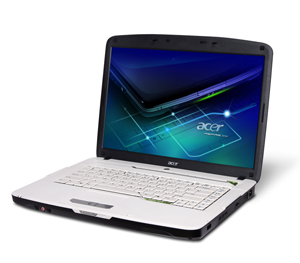
 I BOUGHT AN ACER ASPIRE 5315 laptop at a WalMart Black Friday Sale for $347.00. What a great deal! But it was soon driving me insane, with a cursor that jumped, not just around in the text I was typing, but completely out of the window – to open and close programs, selecting blocks of text and deleting them, clicking on links, even shutting the laptop down at times.
I changed some sensitivity settings, but it didn’t help. Everyone said “you must be accidently putting some slight pressure on the keypad while you are typing”. No I wasn’t. I had my hands way up in the air. There wasn’t so much as a breath on the keypad.
I finally wrote to Acer Support. They were great! They wrote back right away and my problem has been solved. If you are having the same problem with your Acer, maybe this will help you.
Thank you for contacting Acer America. I apologize for the inconvenience that you have experienced. Frequently when typing, your wrists will brush the touchpad, causing the cursor to jump around or even leave the window. (NOT!) To adjust the sensitivity of the touchpad, go to Control Panel > Mouse > Device settings > Settings, and you should see Sensitivity in the list on the left with + next to it. Click the + next to Sensitivity and adjust the settings to your liking. Also check the Palm Check settings for another way to tweak your touchpad settings. If this still does not solve your problem, it may be that part of your hand is still touching the touchpad. To test this, you can try typing with your touchpad turned off. You can turn it off by holding the FN key, and pressing the F7 key.
Use the same key sequence to enable your touchpad again.Another suggestion is to disable the tap-to-click option for your touchpad. I am including these steps below.
1.) In the system tray (Near the digital clock in the bottom right corner) right click on Touch Pad. This icon will look like a touchpad on a notebook or a red square with a white circular shape inside.
2.) Choose Mouse Properties or Pointing Device Properties.
3.) Click on the tab that says Tapping and proceed to step 4, or click on the tab labeled Device Settings and proceed to step 6.
4.) To disable Tap-to-Click while typing, ensure that the box next to “Tap off when typing” is checked. If this does not correct the issue, or you would prefer to disable the Tap-to-Click feature completely, ensure that there is NOT a check in the box next to “Tapping” (you can also adjust the speed of Tapping or the duration in which Tapping is disabled after you have pressed the last key while typing.)
5.) Click Apply and then OK.
6.) Click on the button labeled Settings.
7.) To adjust Tap-to-Click while typing:
a.) Click the plus (+) sign next to Sensitivity in the left menu.
b.) Click on PalmCheck
c.) To reduce the area required for tapping, move the slider towards Maximum. To increase the area, you can slide towards the Minimum
8.) If this does not correct the issue, or you would prefer to disable the Tap-to-Click feature completely:
a.) Click on Tapping in the left menu.
b.) Ensure that the box next to Enable Tapping is NOT checked.
9.) Click Apply and then OK.
If this does not resolve the issue, we suggest reinstalling the touchpad driver. I am including instructions on how to install the driver from your computer’s hard drive, using the eRecovery utility. If this does not correct your problem, you can try Acer’s software support at https://www.acer.com/ac/en/US/content/support
1. To start the eRecovery program move your mouse over the Empowering technology widget and click on the eRecovery Manager icon. You may also press ALT and F10 on the keyboard to start the program.
Please note: The first time you access the eRecovery feature, you will be prompted to create a password. Be sure to write this password down somewhere safe. If for any reason you do not have the correct password you will be unable to use any feature of the eRecovery.
The next window will have the options at the bottom of the window.
2. Choose Restore
3. Next, choose Install
4. Click on Windows Vista on the left side of the page
5. Choose driver.
6. In the list choose the item you wish to install
7. On the right click the install link and follow the prompts.
8. The system may restart when installation is complete
Respectfully,
Acer America
Online Technical Support
Even if you weren’t able to grab one of these Acer Aspire deals from Walmart, you may have similar settings for your laptop.

i have an acer 5315 w/vista. same exact problem. it was fixed for a while, then came back recently w/a vengence. why dont they just make computers where this doesnt happen? apparently it happens on macs too, surprisingly. i’m about to try out ur solution! wish me luck !!
Thanks for posting this! I was having the same problem and was incredibly frustrated. This article really helped.
Great advice – I already got my girl a mouse for the laptop so this was annoying as the pad was rarely used. Now i get no more nagging! Ta!
Is there a fix for the mouse jumping on Aspire 5315-2153 running Windows XP?
I have the same problem but I am using windows xp. I came across touchfreeze and I have to run it almost every week to stabilize the jumping cursor. Is there any way to get rid of the jumping cursor in XP? If others were getting it in Vista which I disliked and I am getting it in XP, then it must be a hardware problem. I do not have a driver for the touchpad and isn’t listed in device manager but the touchpad works and the mouse also works. I am hopeful there might be a solution for a XP install on the Acer 5315 laptop.
Thanks
I had a problem with the cursor acting “jittery” making it hard to click on things. I found that if I hit one of the arrow buttons, the cursor immediately stops moving. It now only happens occasionally, but I just hit an arrow button and all is calm again.
I had the same issue with my 5315. My touchpad is the ALPS version. I found that updating to the latest drivers was no use whatsoever. I had to hit the arrow button too (acting like a reset/interrupt for the touchpad software). IT WAS INFURIATING.
I am fortunate enough to have a dual boot machine (2 systems on 1 laptop).
In ubuntu this issue DOES NOT occur at all!!! So its some sort of software issue!
The solution is to have a more basic touchpad – basically uninstalling the drivers (and their programs via the tickbox). The more basic touchpad does not have scrollbar to the right and bottom of pad BUT IT WORKS. In the Device Manager I now see “PS/2 Compatible Mouse”. Driver Version 6.0.6001.18000 and the Provider is Microsoft.
Vista re-installs appropriate drivers so no need to worry that you’ll have an unworkable pad. If you are concerned then keep a copy of the drivers from the http://support.acer-euro.com/drivers/ftp/ftp.html site.
Thanks a million for this post, it was extremely useful and solved my problem in a jiffy. Else I would have spent days and days trying to figure out why the touch pad had stopped working. atul
I just bought a Acer 5517 64 byte 2010
I installed word 2007 and now my cursor jumps when it word.
I had it, so I called Acer support.
I was sent to India. Don’t we fix problems in the USA
He told me to send it back, it was h/w and I said no
He told me to go to http://www.support.acer.com
Select Notebook
select product line which is aspire 5517
OS which is W7 home premium x64
driver
select touch pad synaptics touch pad driver 3.2.2.0
see of that works.
If not send it in
Will the driver work for me ?
help help help.
I cannot believe from 2008 to 2010 it still does not work
I tried doing the FN key and F7 and does not do anything.
Help
joedi1@frontiernet.net
Hi Sylvia,
I’m not sure if it will work for your model or not. I guess you could give it a try.
I contacted Acer Support thru an email address, found on their site. Wish I had saved it, but I didn’t.
Look around on their site for a support email. It was free, and they were very helpful. Hope you get it fixed – things like that can drive you crazy!
Acer 5517 64 byte 2010 brand new
Jumping cursor
help
FN + F7 key does not work
help
I disabled taping my face was flushed because I didn’t know how to put it back
no one told me what would happen next
help
Put back tapping why would I want to do that
I use this for my job everyday
help
what about touch freeze will that work ?
help
what about updating my drivers for the mouse
help
Mircrosoft I spent 700.00 and you do not work
My wife has an Acer 5315-2077 that I got for her, a while back from TigerDirect as a refurb. She’s got the exact issue with the jumping cursor, that will also randomly highlight and delete text.
I’ve tried changing touchpad settings, and just the other day did some driver updates, including the latest ALPS touchpad one, from Acer’s support site. That didn’t help, but I’ll go through the steps to see if I changed the “tap to click” settings – I don’t recall.
Anyway, thanks for this…. hopefully it helps. I’m considering a Windows 7 upgrade, I don’t know if that would help, but it seems like it’s a touchpad/driver issue, so perhaps not!
I’m not sure upgrading to Windows 7 will do ‘exactly’ what you want. I now have Windows 7 x64 and my driver version shows Microsoft as Provider, Driver Date as 21/06/06 and Version as 6.1.7600.16385. Windows 7 says the driver version is up to date.
On this version the touchpad is still the same – all major ops like ‘tap to click’, ‘double tap’, ‘tap and select’, ‘tap and move window’, etc. The only missing op is the scroll on right and bottom of pad (as I said previously)…and with a 5315 I just use the scroll key below pad (works brilliantly), or cursor keys, or pgup/pgdn.
When I had Vista I tried up to v7.0.1101.17 and even tried Synaptics drivers. None of them removed the problem. Going back to Microsoft drivers did.
Everything is working well after ~2months of Windows 7 so I do not intend to update to any of the latest drivers. For me unusual cursor jumps/selects could have cost me – literally (think buy vs sell)!
So what is the fix for this problem on XP
by a better laptop coz this one is shit
I agree with meee!!!
Hi i have a 5517 acer running on window 7 and the cursor is jumping any driver someone??
I have an old Acer 5315-2153 using Win 7 Professional. I went to the acer site and downloaded the ALPS touchpad. so far so good. Loving my laptop now 🙂 the link I used is below.
http://global-download.acer.com/GDFiles/Driver/TouchPad/TouchPad_ALPS_V5.5.1101.13_XPx86.zip?acerid=633639017330987707&Step1=NOTEBOOK&Step2=ASPIRE&Step3=ASPIRE%205315&OS=ALL&LC=en&BC=ACER&SC=PA_7
I have an acer aspire one with the same mousepad problems plus one that no one has mentioned….I’m running XP and in IE8 windows, the cursor will change to the plus sign with arrows on the ends (like you get in some apps when moving an object) and then resize the zoom level of the IE8 window…sometimes up (to like 105% or 110%) and sometimes down (to like 90% or 95%)….HOW IS THIS HAPPENING????…the other thing no one has mentioned is I move the cursor to some location, and when I take my finger off the mousepad, the cursor jumps back to where is was before, or like sometimes half way back…very frustrating
Hey John,
That’s strange, I never had the zoom level problem with the Acer, but now I am having it with my newer Gateway NV59. I have no idea what causes it, but I do know that when it happens, you can get back to normal by pressing Control + or Control – to adjust the zoom level. Not sure about the mousepad problem either, I don’t like to use the mousepad, and always add a wireless mouse. The Gateway has a huge problem with jumping back a whole page, which is very frustrating, especially when filling out a form, or leaving a long message like this one. Gotta remember to control>c every couple of lines.
My touchpad hasn’t worked ever since I installed Windows 7, and I always assumed it was an issue with W7 clashing with the driver, which was most likely designed for XP. While reading your support feedback they mentioned that Function+F7 toggles the touchpad. THAT WAS IT!! All these months I’ve been using a mouse (often very uncomfortably) just accepting that the touchpad would never work…and it was a simple toggle switch I probably hit accidentally while trying to mute my sound. Lame!!!
Thanks so much for posting this…
Thanks. I install TouchPad_ALPS_7.5.2015.1103_W7x64W7x86_A and very good your solution
I install TouchPad_ALPS_7.6.2015.1105_W7x86_A of Acer Aspire 1830 for Windows 7. Excellent solution. Thanks
I have an acer Inspire with the Curser jumping also, It is a pain in the ass, when you find out you have been typing and the curser has jumped up into the middle of the paragraph. I Bought it from Costco and used there costco Consigliere support they are very good ; Costco refered me to Acer support,[ ican’t understand a dam word over the phone] So got back to Costco and they contacted Acer, and through, costco interpeter, they had me do a Recovery, which was a waste of time, curse still jumped , so back to Acer and they mailed me a return ticket for repair and that is where it is now for 8 to 10 working days after they receive the computer.
Recently purchased the Aspire at Costco. Very frustrated and having the same problem with the cursor jumping around and out of control. It is deleting paragraphs, words, jumping everywhere, opening up other programs. I too initially thought it was me leaning on the mouse pad, but not the case. CS reinstalled keyboard drivers and that did not help. They are not recommending wiping the hard drive (always do that when they cannot figure something out). =) My CD drive just jammed because the outlet plug is too close and runs into it. Thanks for the helpful email. I have already tried some of these things, but will try the others. I am about to give up and return this thing. I am inadvertently paying for the ‘good deal.’ Too bad, seemed like a neat little laptop.
I may have missed it in the above comments, but how do I fix this now I have been upgraded to W7 Pro SP1?
Thanks
Zooming in and shrinking text, highlighting and deleting without any frigging warning–ACER SUCKS.
It really pisses me off–it happens for no good reason.
@Pissed, I know what you mean, but my Acer doesn’t do that – my Gateway does!